
Download: https://code.visualstudio.com/
Official references: AI language models in VS Code, Use the Agents window
📌 About the Agents window The Agents window is a dedicated agent workspace in VS Code. This page only covers connecting LLMoxy as a model provider.
Prerequisites
- VS Code installed (current Stable or Insiders)
- An LLMoxy API token — see Get a token
- Use a default group token for GPT text models. Do not mix image-generation keys.
| Field | Value |
|---|---|
| Gateway | https://llmoxy.com |
| Chat Completions | https://llmoxy.com/v1/chat/completions |
| API Key | Token from the console |
| Recommended models | gpt-6-astra, gpt-5.6-sol |
Agent sessions require tool calling. Set toolCalling to true, or the model will not appear in the Agents window picker.
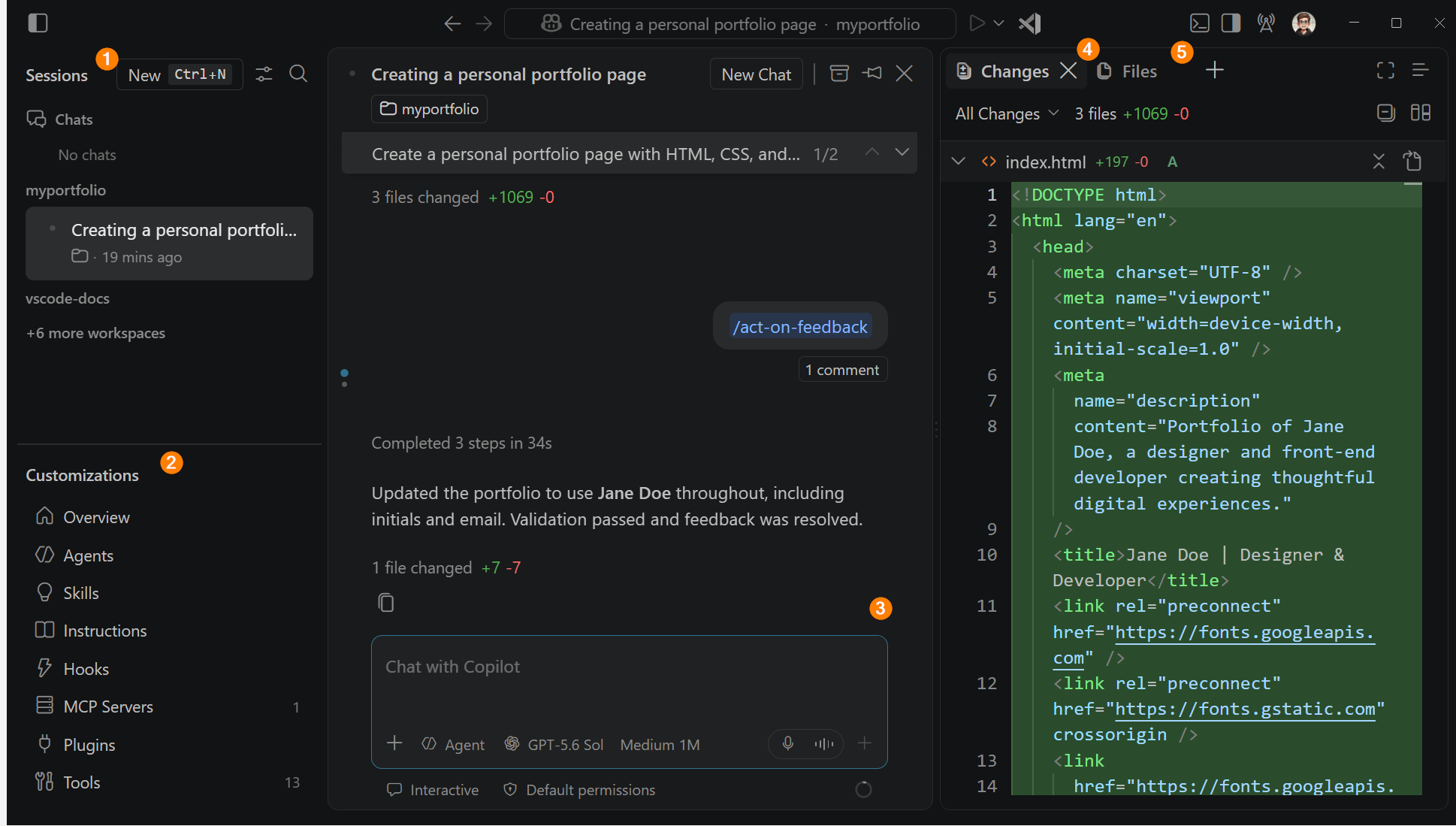
Open the Agents window
- Select Open in Agents in the title bar
- Command Palette (
Ctrl+Shift+P/⌘⇧P) → Chat: Open Agents Window - Terminal:
code --agents
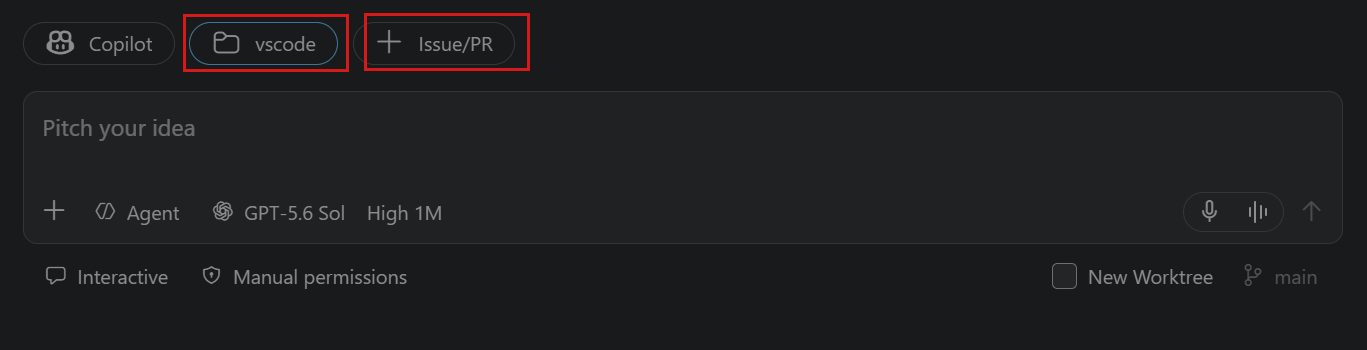
When you start a session, pick the workspace, harness, and language model in the input area.
Allow Agent Host to use your own models
Agent Host sessions in this window need an extra setting for BYOK models.
- Open Settings (
Ctrl+,/⌘,) - Search for
agentHost.byok - Enable Chat > Agent Host: Byok Models Enabled (
chat.agentHost.byokModels.enabled)
To use LLMoxy without GitHub sign-in, also enable Chat > Agent Host: Allow Signed Out When Usable (chat.agentHost.allowSignedOutWhenUsable).
Or add to settings.json:
{
  "chat.agentHost.byokModels.enabled": true,
  "chat.agentHost.allowSignedOutWhenUsable": true
}
💡 Tip Both settings are off by default. Without them, LLMoxy models can show up in Chat but not in the Agents window.
Add an LLMoxy custom endpoint
Use Custom Endpoint. Do not use the deprecated OpenAI Compatible provider.
1. Open Language Models
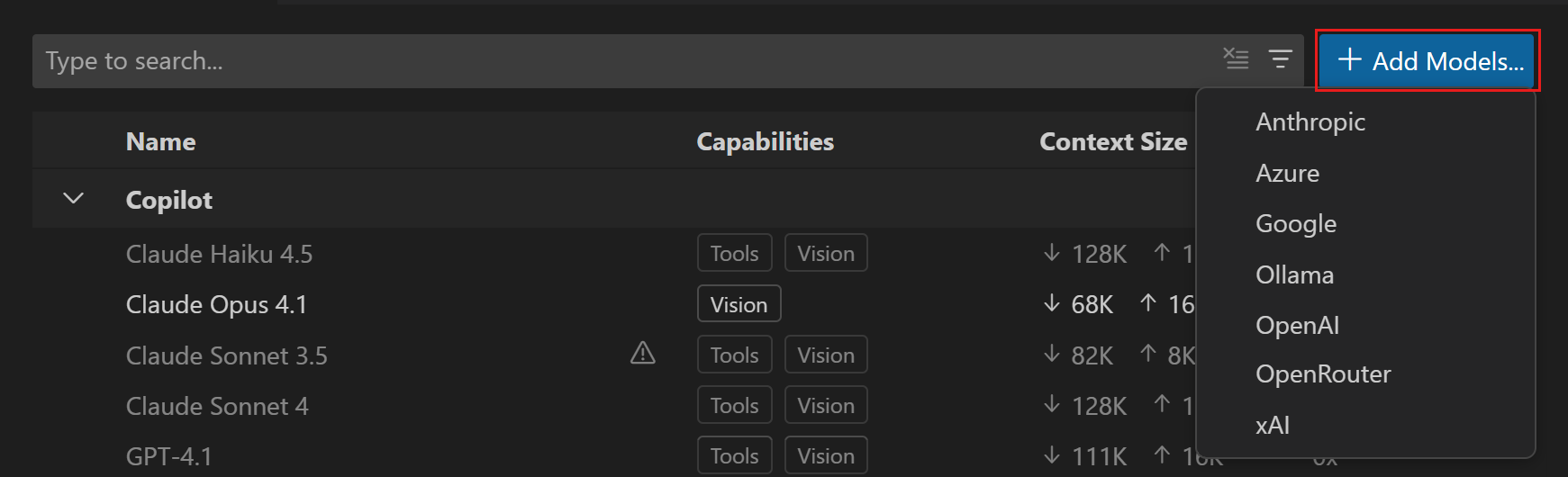
Open the model picker in Chat or the Agents window, select the gear Manage Language Models, or run Chat: Manage Language Models.
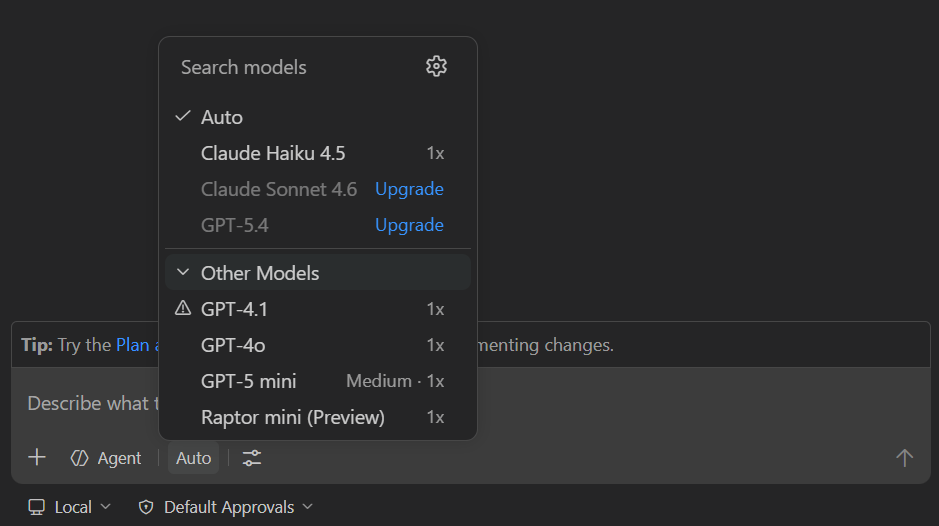
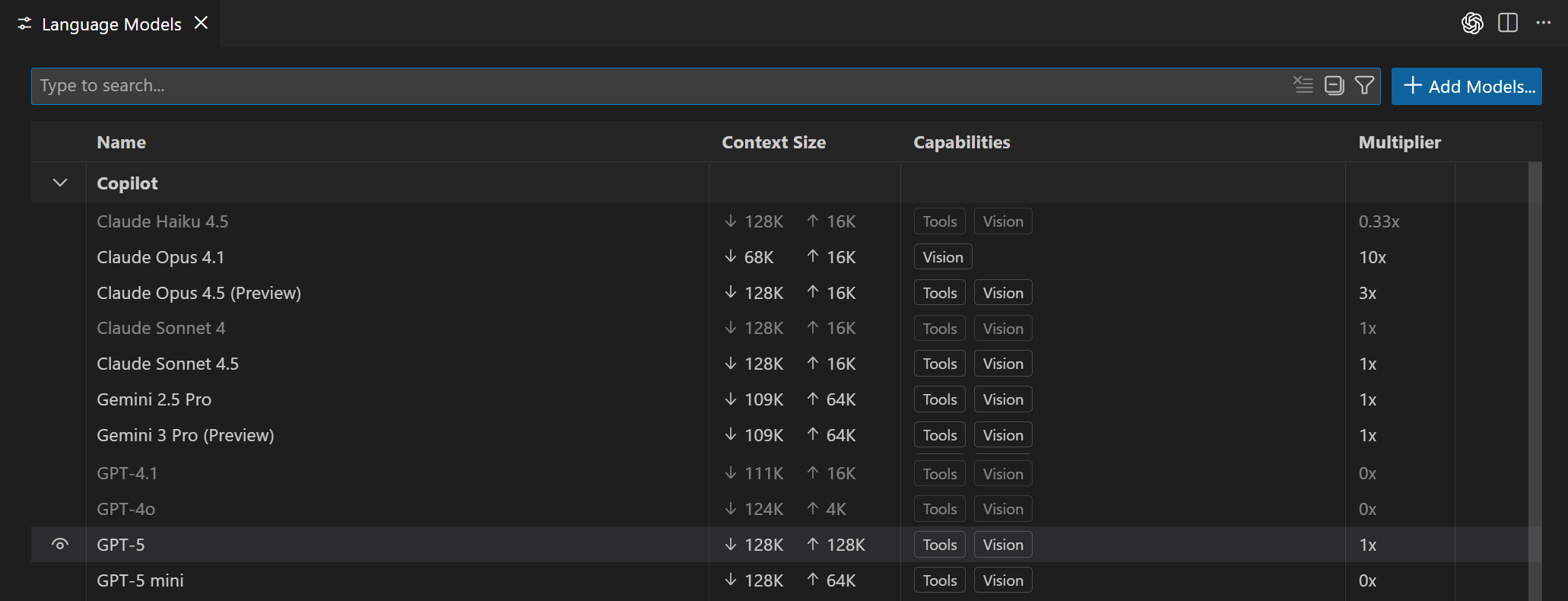
2. Add Custom Endpoint
- Select Add Models
- Select Custom Endpoint
- Group name:
LLMoxy - Enter a display name and your LLMoxy API key
- API type: Chat Completions
3. Edit chatLanguageModels.json
VS Code opens chatLanguageModels.json. Save something like:
[
  {
    "name": "LLMoxy",
    "vendor": "customendpoint",
    "apiKey": "${input:llmoxyApiKey}",
    "apiType": "chat-completions",
    "models": [
      {
        "id": "gpt-6-astra",
        "name": "GPT-6 Astra",
        "url": "https://llmoxy.com/v1/chat/completions",
        "apiType": "chat-completions",
        "toolCalling": true,
        "vision": true,
        "thinking": true,
        "maxInputTokens": 922000,
        "maxOutputTokens": 128000,
        "supportsReasoningEffort": ["low", "medium", "high", "xhigh", "max"],
        "reasoningEffortFormat": "chat-completions"
      },
      {
        "id": "gpt-5.6-sol",
        "name": "GPT-5.6 Sol",
        "url": "https://llmoxy.com/v1/chat/completions",
        "apiType": "chat-completions",
        "toolCalling": true,
        "vision": true,
        "thinking": true,
        "maxInputTokens": 922000,
        "maxOutputTokens": 128000,
        "supportsReasoningEffort": ["low", "medium", "high", "xhigh", "max"],
        "reasoningEffortFormat": "chat-completions"
      }
    ]
  }
]
After saving, GPT-6 Astra and GPT-5.6 Sol should appear in the picker. Restart VS Code if they do not.
Switch models in the Agents window
- Open the Agents window and start or select a session
- Pick the LLMoxy model in the input picker
- For reasoning models, open > next to the name and set Thinking Effort
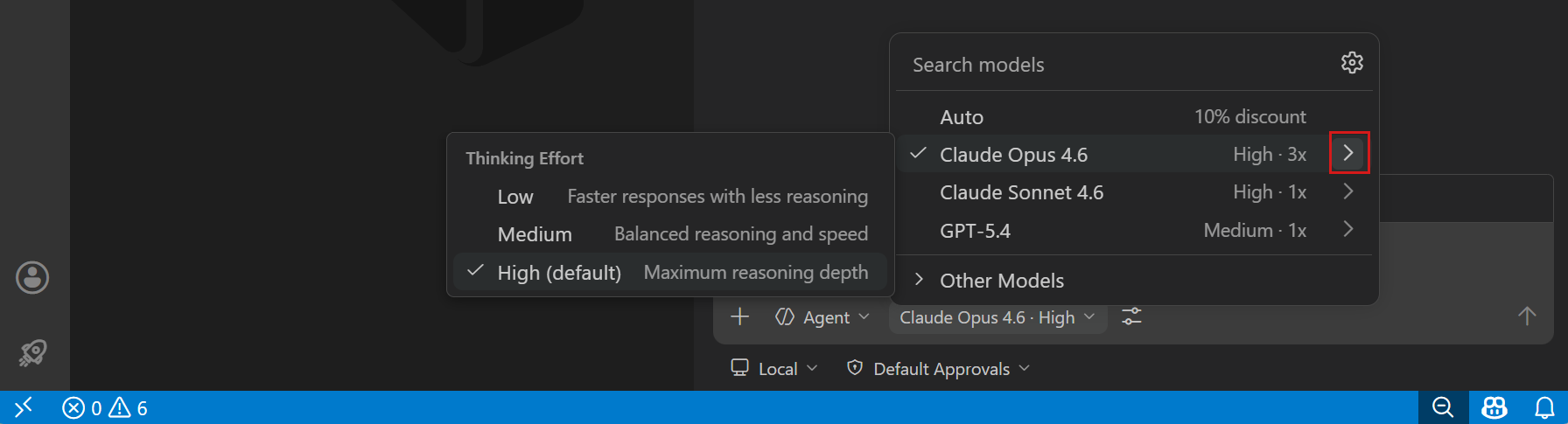
The picker label becomes something like GPT-6 Astra · High.
⚠️ Notes In Restricted Mode the picker only shows Auto. Trust the workspace first. Copilot Business / Enterprise admins may need to enable Bring Your Own Language Model Key in VS Code.
Troubleshooting
- No LLMoxy model in the Agents window: enable
chat.agentHost.byokModels.enabledand settoolCallingtotrue - 422 / model not found:
idmust match the console, e.g.gpt-6-astra,gpt-5.6-sol - 401 / Invalid token: no extra spaces in the key; check the key is enabled and has quota
- Wrong URL: set API type to Chat Completions and
urltohttps://llmoxy.com/v1/chat/completions - Image key used for chat: use a separate key from the GPT Image group for image models